Pre-Health Cal State Apply Instructions
Complete and Submit the Cal State Apply Graduate Application
Complete and submit the Cal State Apply Graduate Application
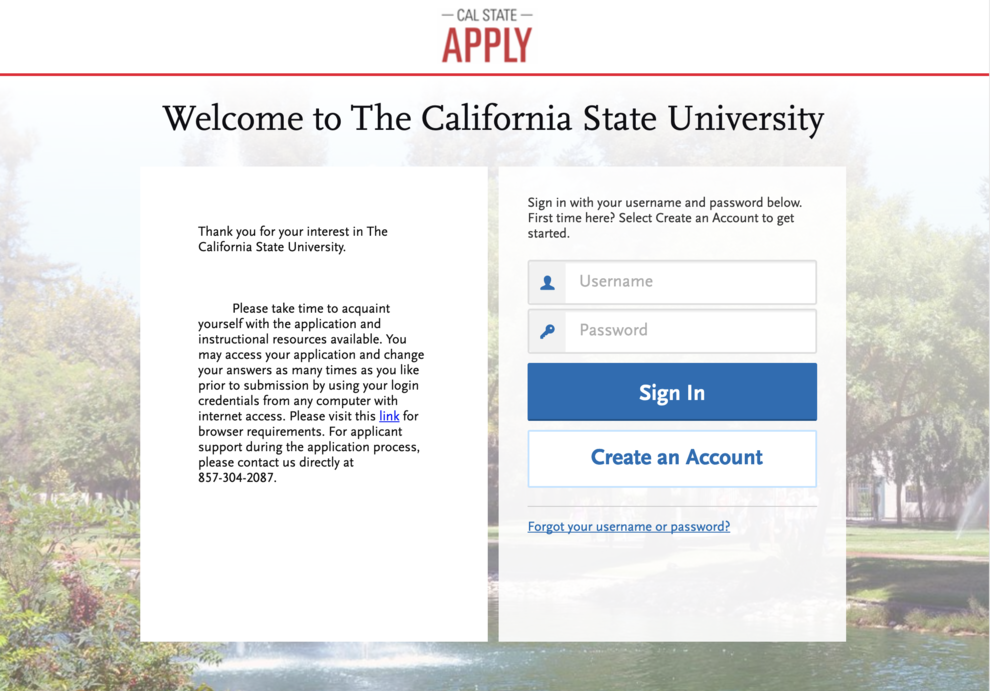
Go to the application page for your intended term. Create an account or sign in if you already have one.
Choose the Following Options When Completing Your Profile
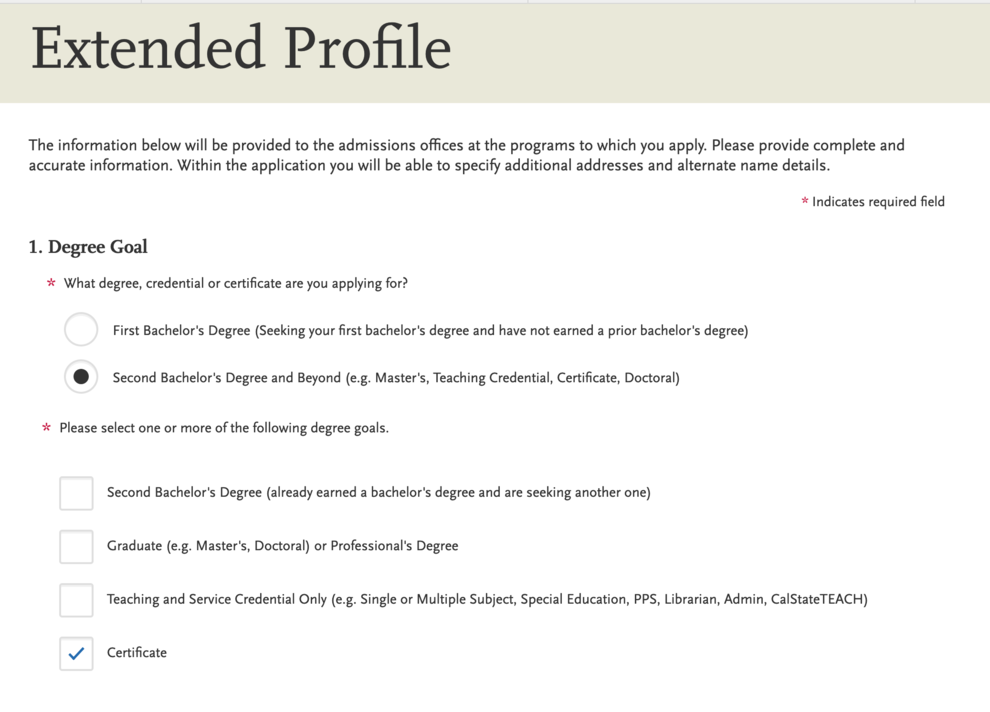
After you create your account, select the following option when completing your profile:
Degree goal: Certificate
Select the Program to Which You Want to Apply
Next, start your application and select the program you want to apply to. You can filter by campus and choose San Francisco.
If you are pre-medical, pre-dental, pre-physical therapy, pre-pharmacy or another pre-doctoral track, select the Pre-Health Professions program.
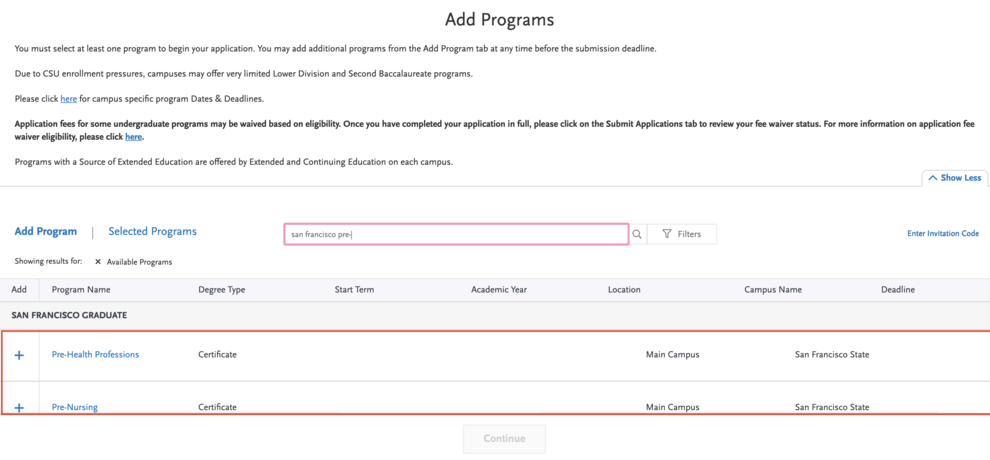
If you do not see the program listed, check your Extended Profile by selecting your name in the upper right corner. Make sure you have selected the correct Degree Goal.
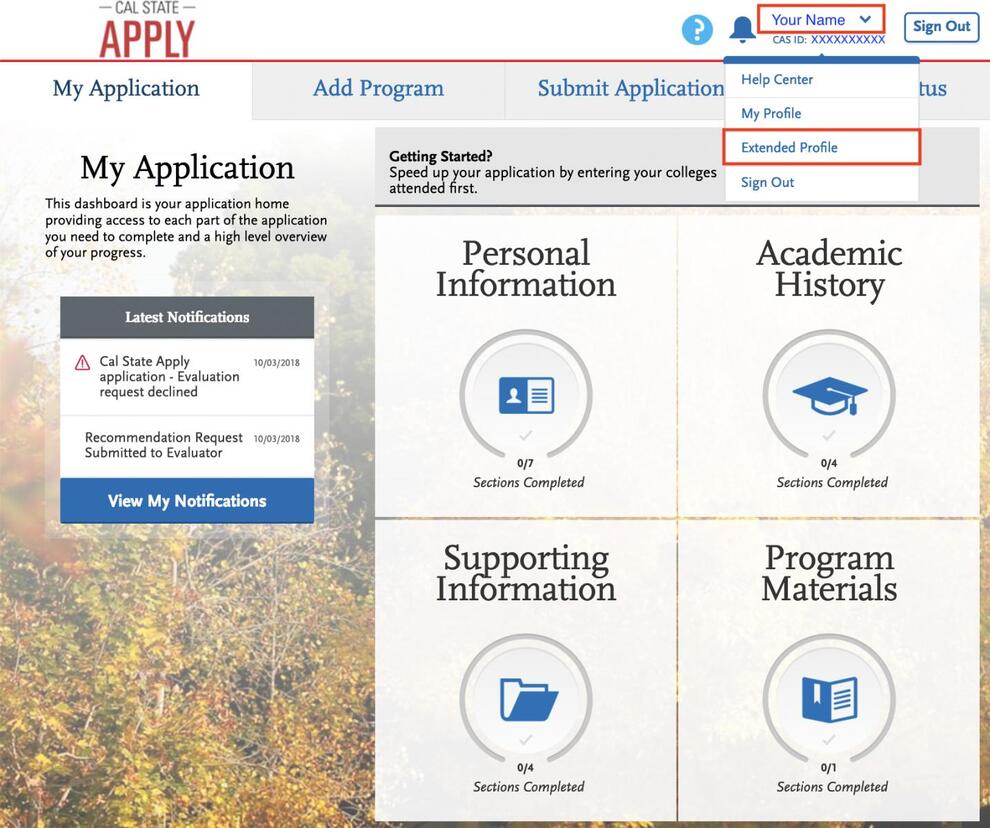
When you switch to a new profile, you may be asked to delete an in-progress application. Select “Continue.”
Be sure to click “Save Changes” to proceed.
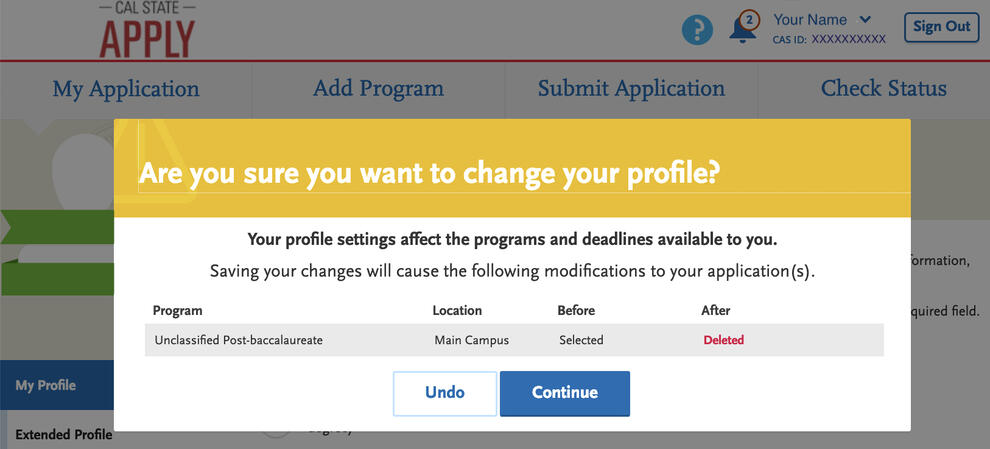

Review Your Selection and Deadlines
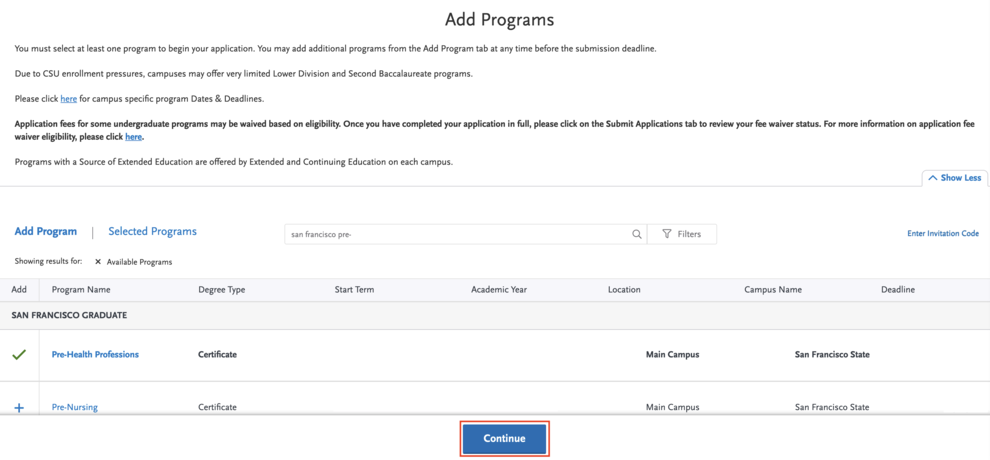
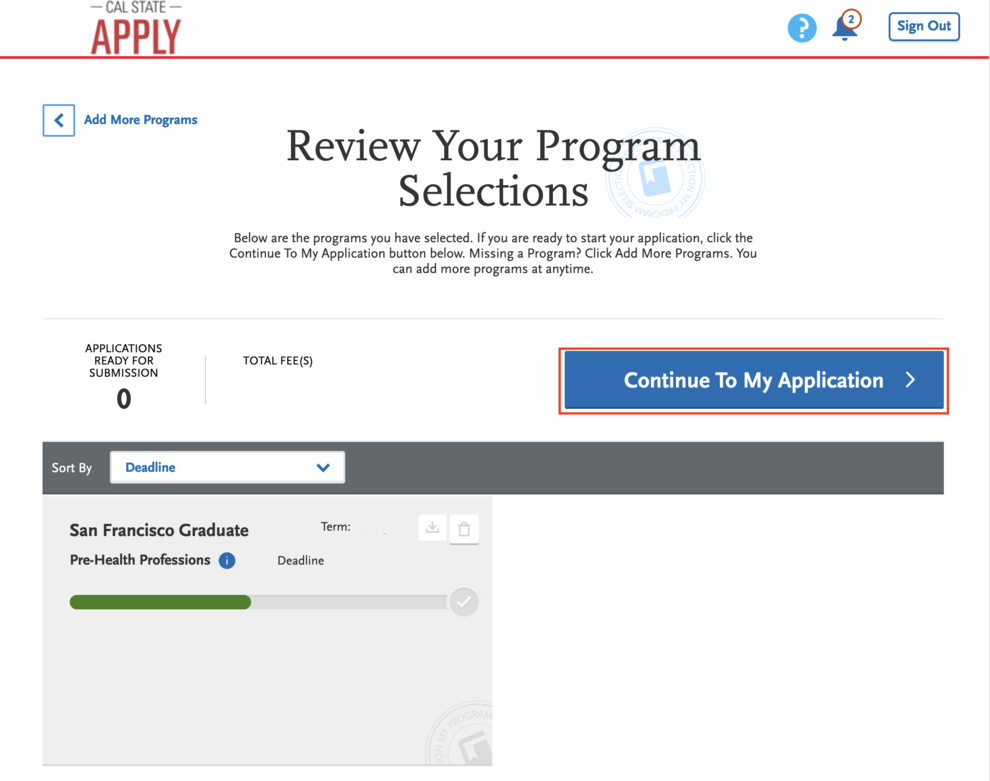
After you select your program, choose “I am Done, Review My Selections” to confirm your selection and deadlines. Then select “Continue to My Application.”
View All Sections in the Main Application Page
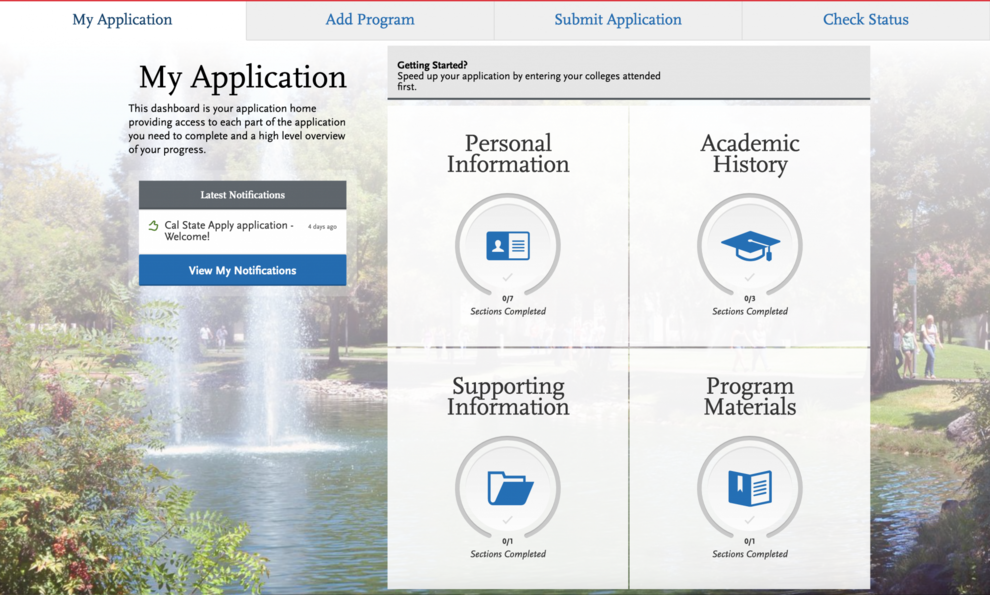
You will be brought to the main Application page, where you can view the four quadrants and your progress in completing each section of the application. You must complete all sections before you can submit your application.
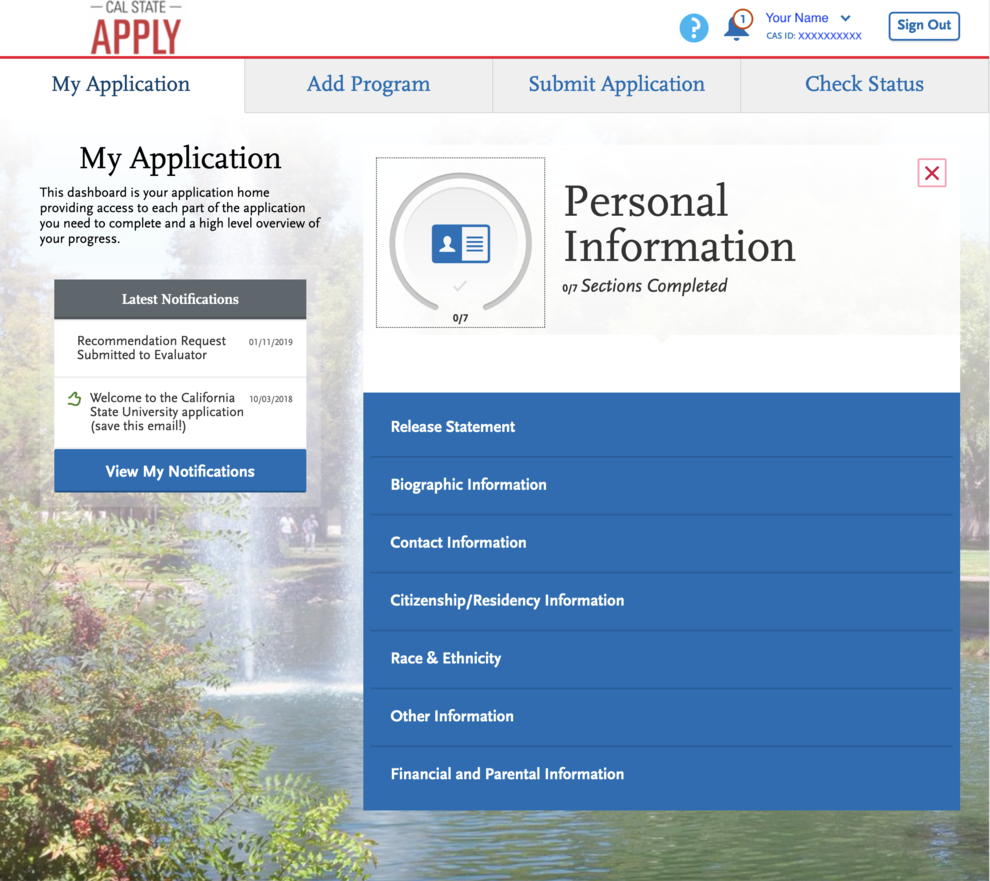
Complete the Personal Information Quadrant
In the Personal Information quadrant, you will be asked to complete some demographic and biographic information.
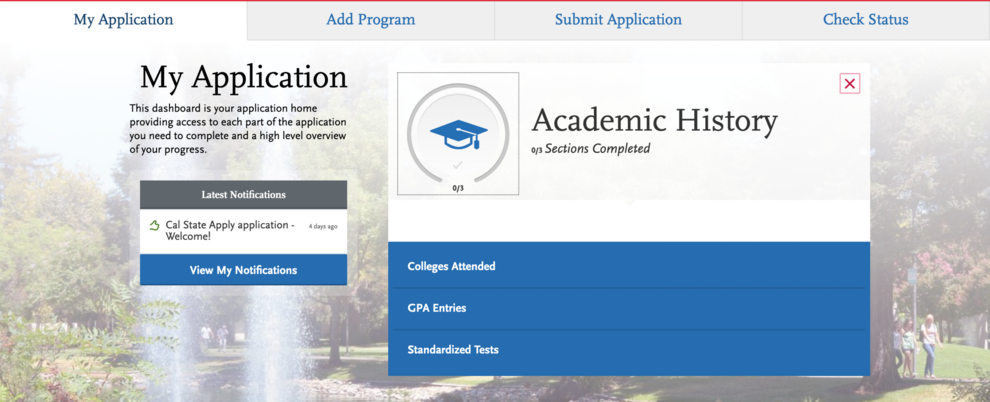
Complete the Academic History Quadrant
The Academic History quadrant is one of the most important sections when applying to our programs.
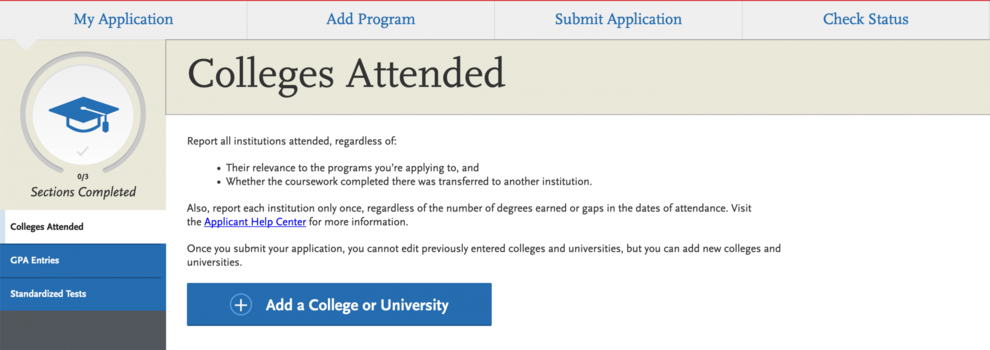
List All the Colleges You Have Attended
List all colleges you have attended, even if you did not earn a degree or had gaps in attendance. You must report all postsecondary institutions.
If you do not include all colleges and coursework, your application may not be considered.
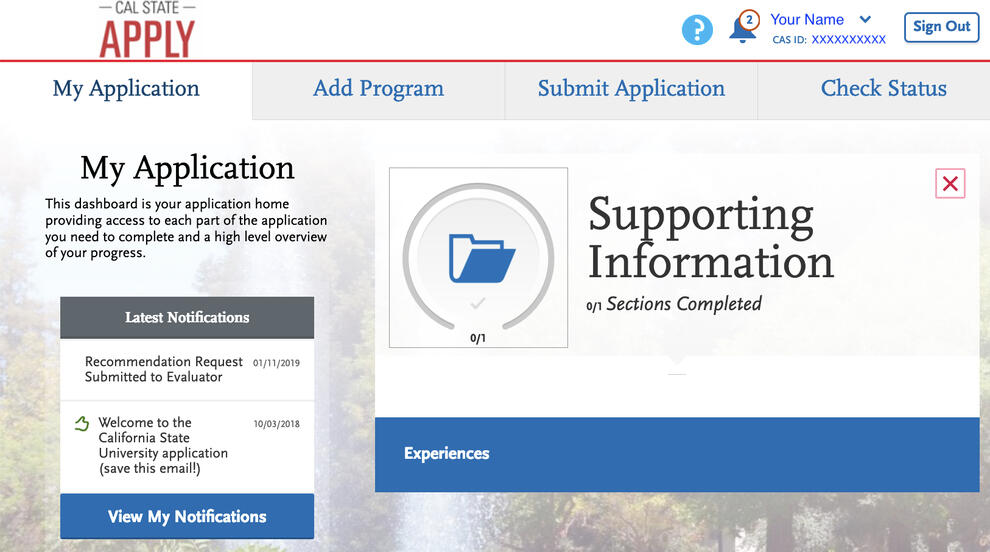
Complete the Supporting Information Quadrant
In the “Supporting Information” quadrant, list up to six relevant experiences. These may include employment, clinical work, community service or research.
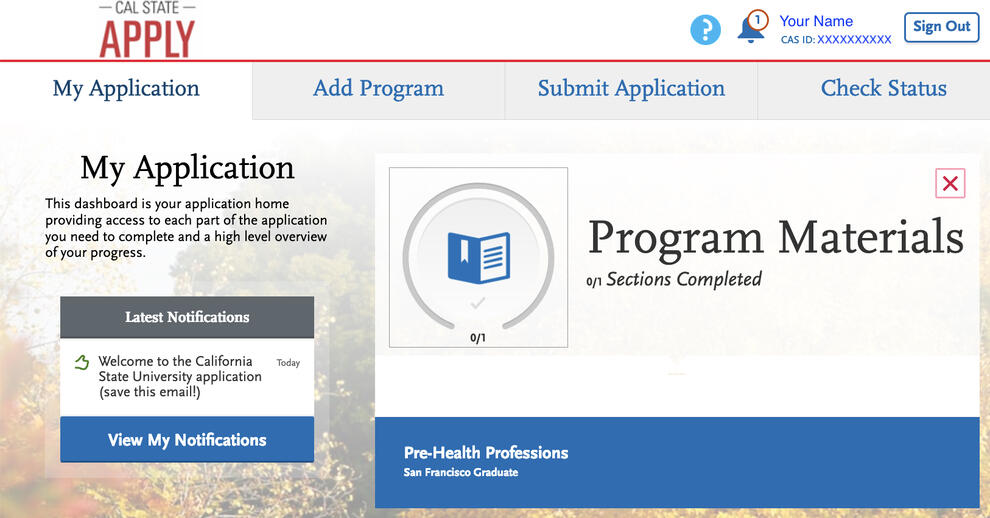
Complete the Program Materials Quadrant
The "Program Materials" quadrant contains specific questions for our programs.
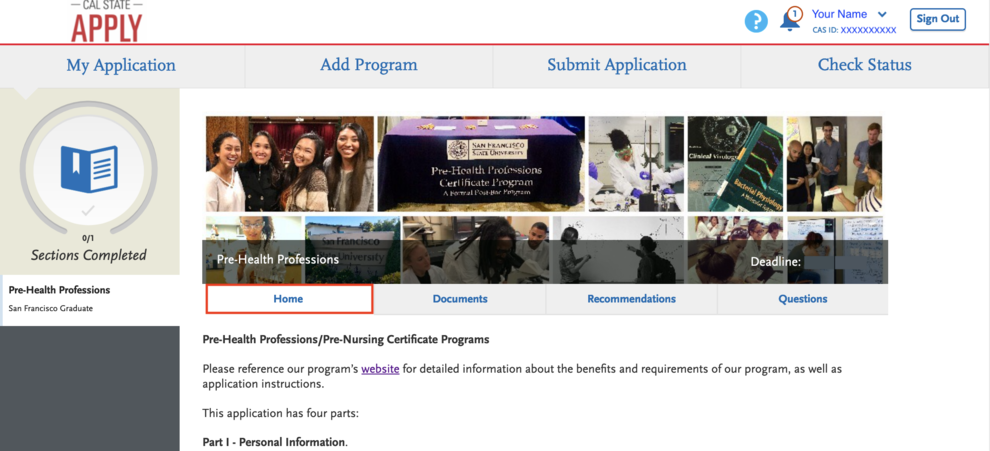
Upload Copy of Transcripts from Every College or University Attended in the Documents Tab
In the “Documents” section, upload transcripts from every college or University you attended. Include study abroad and community college coursework, even if transfer credit appears on your degree transcript. You may upload unofficial transcripts at this stage.
Do not upload photos of transcripts or screenshots of your course history. These will not be accepted. If you are admitted, you will need to send official transcripts directly to the Division of Graduate Studies.
If applicable, you may also upload test score reports such as the MCAT, DAT or GRE, as well as any licenses or certifications. If you have not taken these exams, you do not need to upload scores. Do not upload resumes.
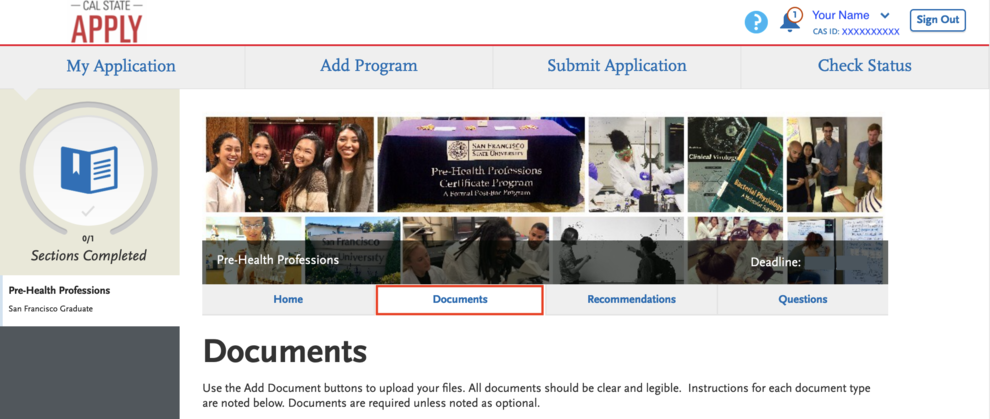
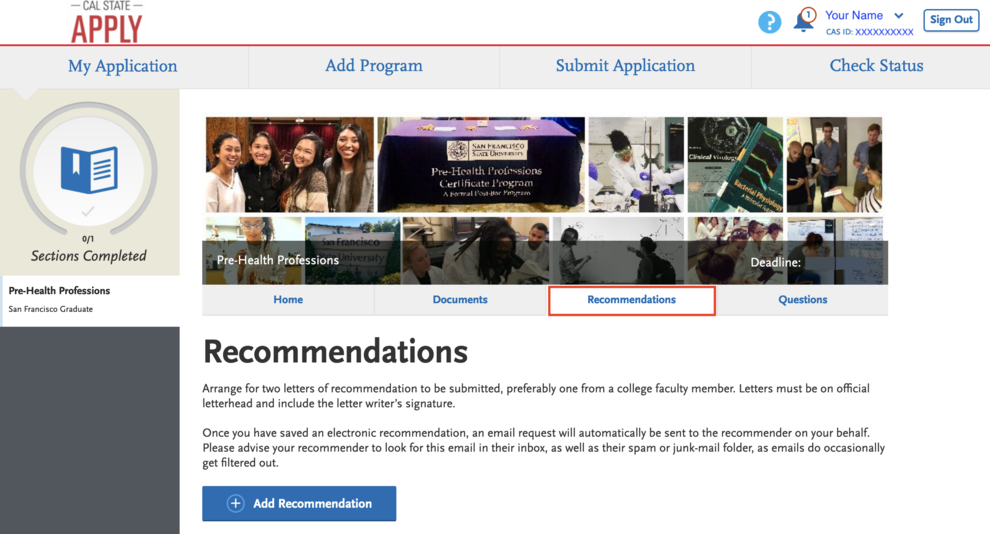
Designate Your Letter Writers in the Recommendations Tab
In the “Program Materials” section under the “Recommendations” tab, enter the contact information for your letter writers. All evaluations must be submitted through the Cal State Apply application.
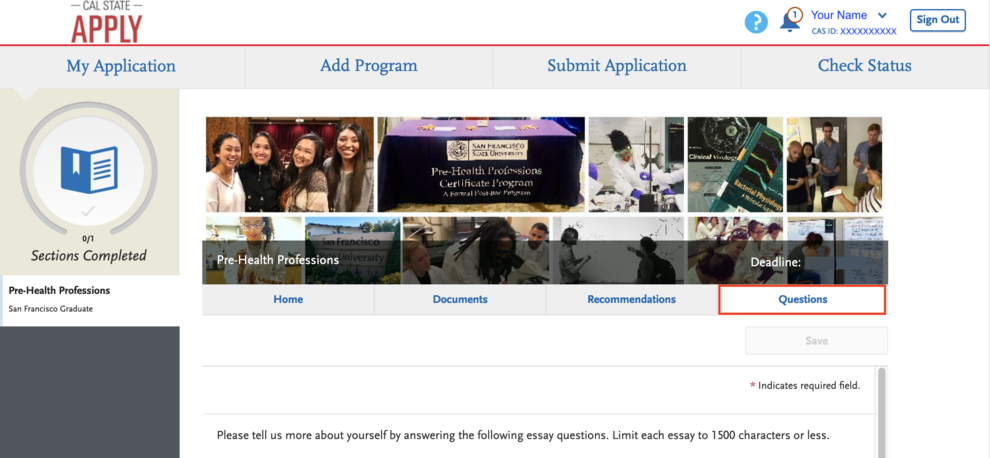
Complete the Program-Specific Questions in the Questions Tab
Complete the program-specific questions in the "Questions" tab.
Submit Your Application
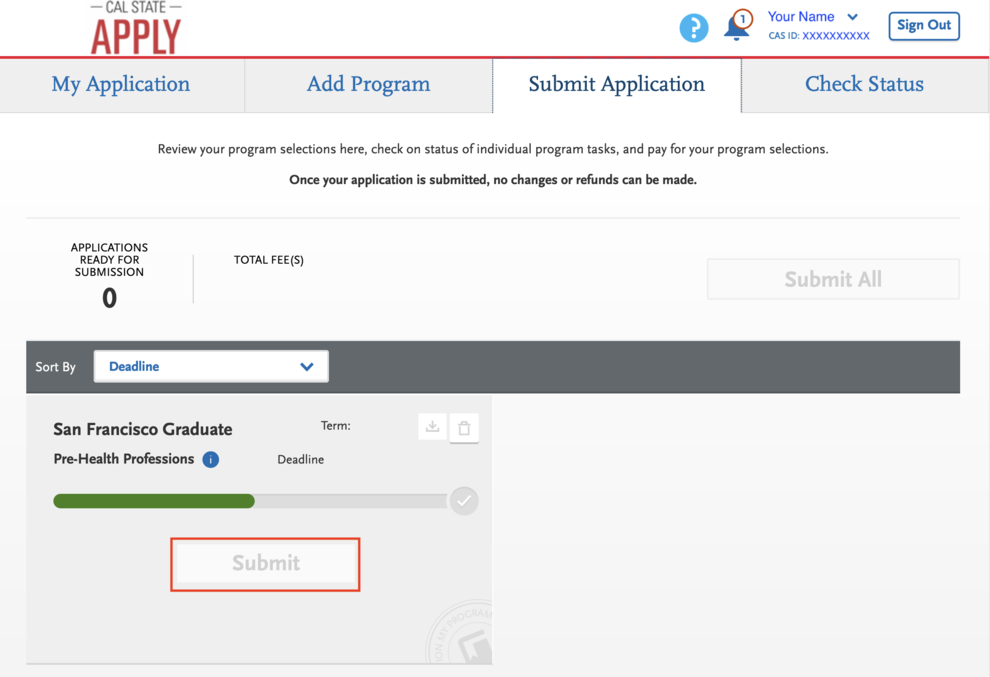
Once you complete all sections of the application, you can submit it.